
FANDAN Alert Config Guide: Real-Time Utility & Forced-Entry Alerts

Two late-night scenarios keep property managers awake: a burst pipe flooding a unit or a tenant reporting the lock was pried open. A single hour of delayed awareness can multiply repair costs tenfold. FANDAN, from Zhejiang Lading Technology Co., Ltd., leverages its Yongkang factory’s annual capacity of 2 million smart locks to connect models like the F9PRO+, P40, and P60 with smart utility meters through the LDRENTING and LDLOCK platforms. This guide walks you through configuring real-time alerts so that tamper and utility anomalies reach your phone within seconds.
Why It Matters: Cutting Losses in Real Time
For centralized apartments, dispersed homestays, and short-term rental operators, traditional inspections leave dangerous blind spots. FANDAN’s alert engine, built into the LDRENTING cloud platform, aggregates data from smart meters—covering usage spikes, reverse wiring, and offline events—alongside lock data such as anti-tamper alarms, consecutive wrong-code attempts, and low battery. Once configured, teams receive App push, SMS, and voice call escalations within 30 seconds of an event. Industry data suggests early water/leak detection can prevent hundreds of yuan in secondary damage monthly; sub-minute tamper response can improve safety incident resolution by over 90%, cutting both operational costs and insurance risk.
Use Cases: From Apartments to Public Housing
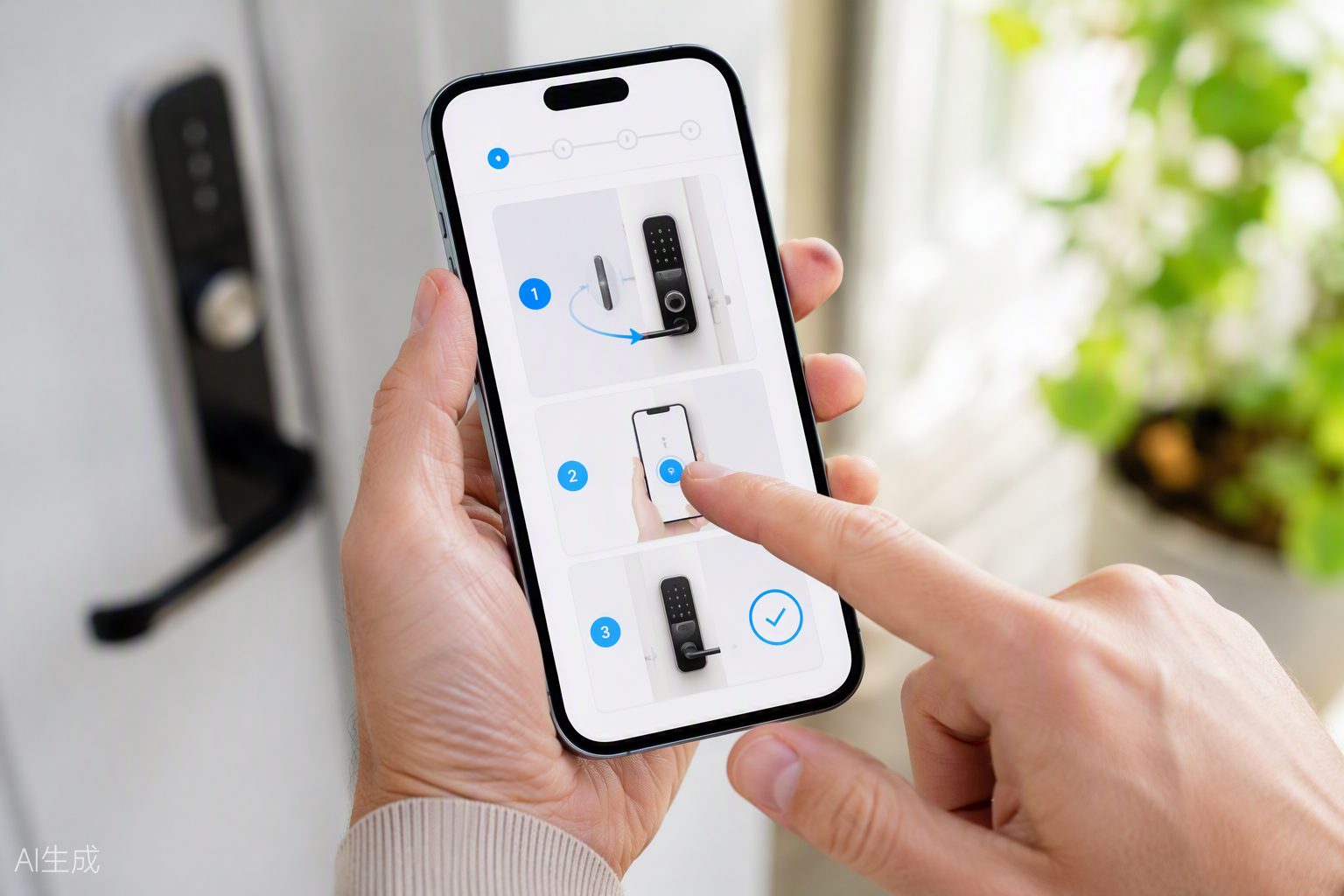
- Centralized apartment complexes: Batch-monitor utility leaks and abnormal public-area power draw across entire buildings.
- Remote homestays / net-rental units: landlords living off-site need instant notice of forced entry or lock destruction.
- Dormitories & public housing: integrated via FANDAN HOME for私有化 deployment and security audit compliance.
FANDAN’s one-stop hardware + software service covers the full chain from locks to meters. Learn more about compatibility at the [FANDAN official site](https://store.fandanlock.com).
Step-by-Step: Five-Minute Alert Setup
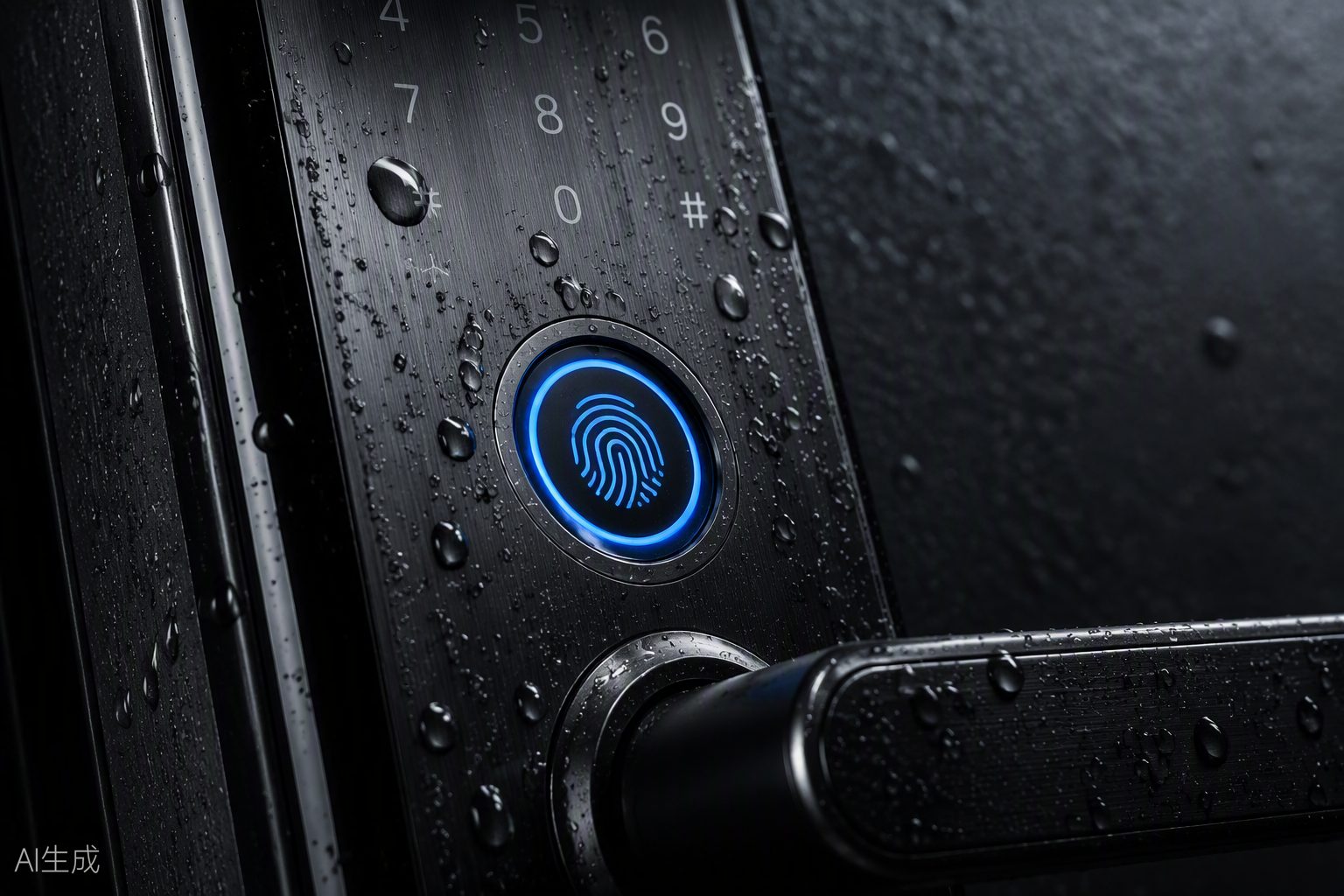
Step 1: Log in to LDRENTING and open the Alert Center
- Log into the LDRENTING mobile app or PC backend with your admin account, then tap Device Management from the dashboard.
- In the left navigation pane, choose Alert Center. On first use, bind your project and room inventory.
- Make sure the top tab is set to Exception Rules, then click Start Config.
> [Screenshot placeholder] LDRENTING backend left navigation showing Device Management → Alert Center path, with the Exception Rules tab highlighted
Step 2: Configure smart meter thresholds
- Under Utility Alerts, click New Rule and select online smart water/electricity meters (bulk-select by building or floor).
- Set triggers: daily power spike (e.g., >20 kWh), continuous water flow (e.g., >30 min), or device offline timeout (e.g., >2 hours).
- Choose notifications: enable App Push and SMS. The super-admin receives by default; add up to 3 backup contacts.
- Click Save & Enable. The system validates device connectivity automatically.
> [Screenshot placeholder] New Rule modal for utility alerts, highlighting threshold inputs and notification checkboxes
Step 3: Enable forced-entry and lock-tamper alerts
- Switch to the Lock Alerts tab and click Batch Config.
- In the device list, tick the lock models to arm (e.g., F9PRO+, P40, P60, F25), then click Next.
- Tick events: Anti-Tamper (forced entry), Consecutive Wrong-Code Limit (5x), Mechanical Key Unlock, and Door-Ajar Timeout.
- Set severity: mark Anti-Tamper as P0 Critical (triggers a voice call), others as P1 General.
- Click Confirm & Push. Rules sync to the lock and cloud within 10 seconds.
> [Screenshot placeholder] Lock alert batch-config screen showing selected F9PRO+/P40 units and P0/P1 severity radio buttons
Step 4: Set up multi-level responders and SLA timers
- Return to the Alert Center homepage, click Responder Management → Add Duty Group.
- Create two groups: Utility Ops and Security Response, importing the relevant mobile numbers.
- Set acknowledgment SLAs: utility alerts within 2 hours, forced entry within 15 minutes. Unacknowledged alerts auto-escalate to the senior manager.
- Turn on Holiday Auto-Rotation to cover nights and weekends.
- Click Save. Responders receive a test SMS within 30 seconds.
> [Screenshot placeholder] Responder Management page showing two groups with SLA input fields
Step 5: Validate channels and archive the configuration
- In Alert Center, click Simulation Test, choose Utility Spike, and trigger it. Confirm the admin phone receives the LDRENTING push and SMS.
- For lock tamper, pick a configured F9PRO+ and long-press the indoor anti-tamper button for 3 seconds (or contact FANDAN support for remote simulation). Verify the voice call connects.
- After successful tests, open Operation Logs to review rule activation, then click Archive to generate a config report for future SOP audits and multi-project cloning.
> [Screenshot placeholder] Simulation Test screen and Operation Logs list showing success statuses
Pro Tips: Bulk, Auto & Quiet Hours
- Bulk Template Reuse: Click Export Template in the top-right of Alert Center to save your rule set as a JSON file. If you manage multi-city units via FANDAN PMS or run public housing through FANDAN HOME私有化 deployment, import this template to sync rules across hundreds of rooms instantly.
- Auto Valve Shutoff: Under Advanced Options in utility rules, enable Auto Valve Close. If water flow exceeds the threshold and no one acknowledges the alert within 15 minutes, the platform sends a shutoff command to the smart meter. Confirm your meter model supports valve control via [FANDAN official site](https://store.fandanlock.com) support.
- Quiet Hours: Go to Alert Center → Do-Not-Disturb to lower sensitivity from 23:00 to 06:00. During this window, only P0 forced-entry alerts ring through; utility anomalies are batched and sent at 07:00.
- Lightweight Security View: Beyond the LDRENTING app, security contractors can receive anti-tamper pushes through the BLUELOCK mini-program without accessing rental operations data.
FAQ: Three Common Setup Failures
- Why am I not receiving alerts?
Check LDRENTING App → Profile → Notifications and ensure system permissions are on. Some Android devices also require enabling Auto-Launch and Background Pop-ups; otherwise P0 voice alerts cannot wake the screen.
- Why does batch push say "Device Offline"?
Offline locks cannot accept cloud rule updates. In Device Management, check network status. For battery-powered models like F25/F25MINI, replace the batteries if low, then manually click Retry Push.
- Why do utility alerts trigger too often?
Spike thresholds should be 2–3x the recent 7-day average. If the unit is newly online with no history, enable Learning Mode for 72 hours so the system recommends a baseline before switching to formal alerting.
Related Features: Expand Your Stack
- For hotels and homestays, pair alerts with FANDAN PMS to auto-generate utility bills the moment a guest checks out.
- For chess/card rooms and meeting spaces, FANDAN CARD ROOM uses the same alert engine for off-hours power anomalies.
Explore our OEM/ODM programs and global partnership opportunities on [FANDAN official site](https://store.fandanlock.com).
Certified commercial clients are eligible for the Free Sample program, covering core devices like the F9PRO+, P40, and smart meters. Click [Get Free Sample](https://store.fandanlock.com) to submit your project details. Our channel manager will contact you within 24 hours to assist with device onboarding and pre-configuration of alert rules.