
Auto-Collection Explained: Configure Once, Save Effort Forever
Auto-Collection Explained: Configure Once, Save Effort Forever
Why It Matters
One of the most labor-intensive tasks in long-term apartment and short-term rental operations is rent and utility collection. Traditionally, property managers manually verify bills, make phone calls, and track transfers—any oversight directly impacts cash flow. With the Auto-Collection feature in LDRENTING, operators configure rules once, and the system automatically sends reminders before due dates and locks door access after overdue periods, eliminating manual follow-ups entirely. According to publicly available industry data, intelligent collection management can shorten rent recovery cycles by over 30%, double the number of units one manager can handle, and save tens of thousands in labor costs annually. Paired with the smart rental solutions on the [FANDAN official site](https://store.fandanlock.com), you achieve truly automated financial operations.
Use Cases
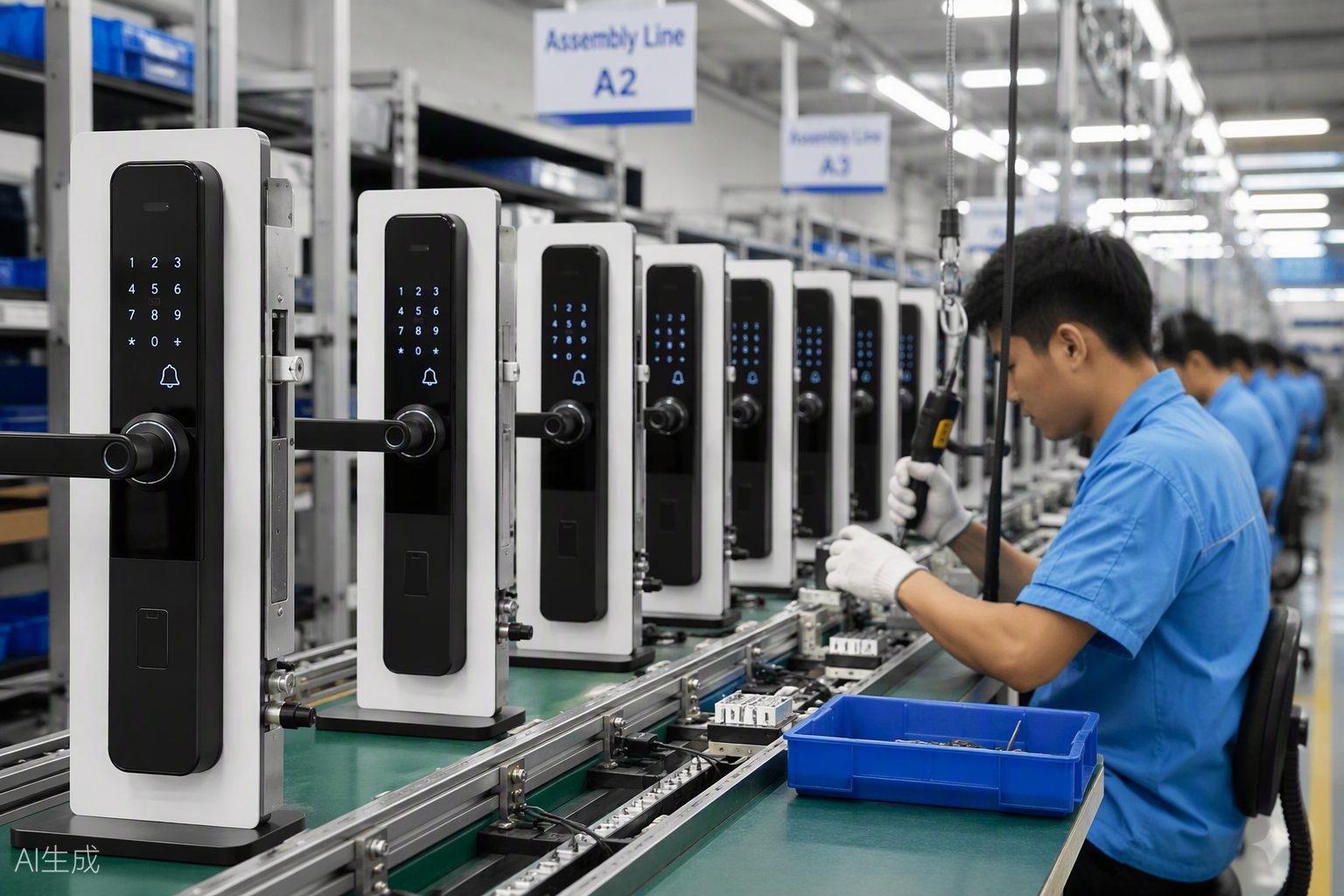
This feature is designed for long-term apartment operators, landlords, homestay hosts, and managed-property administrators. It applies to monthly/quarterly rent reminders, utility bill splitting, short-stay deposit top-ups, and more. It is especially effective for properties equipped with network-connected smart locks such as the F25, P40, and G20PRO. When tenants fail to pay on time, the system automatically restricts door-access privileges, creating a closed-loop workflow of reminder, collection, lockout, and restoration.
Step-by-Step

Step 1: Log In and Access the Financial Center
- Open your computer browser, visit the LDRENTING web portal, and log in with your administrator account
- Click the "Financial Management" module in the left navigation bar to enter the "Bill Management" page
- Confirm the property group name displayed in the upper-right corner; if needed, switch to the target building or project from the drop-down menu
Step 2: Enable the Auto-Collection Master Switch
- At the top of the "Bill Management" page, locate the "Auto-Collection Settings" button (to the right of "Create New Bill")
- In the pop-up window, toggle the "Auto-Collection" master switch to "On"
- Read and check the "Auto-Collection Service Agreement," then click "Save Basic Settings"
Step 3: Configure Collection Rules and Time Nodes
- Switch to the "Rule Configuration" tab and click "Add New Rule"
- Under "Trigger Conditions," set "Reminder Before Due Date" to 3 days (customizable from 1 to 7 days), and check the delivery methods: App Push, SMS, and WeChat Template Message
- Under "Overdue Handling," set the "Grace Period" to 1–3 days (1 day recommended); after the grace period, the system will automatically execute "Lock Access Freeze"
- In the "Amount Threshold" field, set the rule to skip bills under 100 RMB to avoid disturbing tenants with small utility charges
- Click "Save Rule"; the system will prompt "Rule Is Now Active"
Step 4: Bind Smart Lock Linkage Strategy
- Switch to the "Device Linkage" tab and click "Associate Locks"
- In the device list, select online locks such as the F25, P40, or G20PRO (ensure the status indicator is green)
- Set linkage actions: "Day 1 Overdue" sends only a collection notice; "Day 3 Overdue" automatically freezes temporary passwords and key cards while retaining the admin key and tenant's primary password (access automatically restores after payment)
- Click "Confirm Binding"; the page will display "X Locks Associated"
Step 5: Set Notification Templates and Payment Methods
- Go to the "Message Template" tab, choose a preset template, or click "Custom Edit"
- In the editor, verify the variable tags: {Tenant Name}, {Room Number}, {Bill Amount}, and {Payment Link}; do not delete them by mistake
- Check "Include Online Payment Link" to connect WeChat Pay or Alipay (complete merchant ID binding in "Payment Settings" first)
- Click "Save and Preview," then send a test message to the administrator's phone to confirm formatting and links
Step 6: Bulk Apply to Properties and Verify
- Return to the main "Bill Management" screen, check the boxes for target properties on the left (supports selecting an entire building)
- Click the "Bulk Apply Rules" button at the top, and select the newly created "Auto-Collection Rule A" in the pop-up
- Click "Confirm Apply"; the system will display "Successfully Configured for XX Properties"
- Manually create a test bill with tomorrow as the due date and observe whether the system pushes the reminder on schedule to verify the complete workflow
Pro Tips
- Bulk Import Bills: Download the standard Excel template under "Financial Management" to import an entire month of rent bills at once; the system automatically matches existing collection rules by property without per-unit repetition
- Tiered Collection Strategies: For premium apartments using the F7PRO+ lock, set "Notify Only, Do Not Freeze Lock"; for budget properties using the B60, set "Freeze Card Immediately Upon Overdue" to enable differentiated operations
- Hidden "Whitelist" Feature: In "Tenant Profile," enable the "Auto-Collection Exemption Whitelist" for trusted long-term tenants; they receive only one gentle reminder without lock freezing, preserving good relationships
- Holiday Smart Postponement: Mark national holidays in "System Settings - Calendar Management," and collection trigger dates will automatically shift to avoid disturbing tenants during vacations
FAQ
- SMS delivery failure: Usually caused by insufficient SMS balance or phone numbers containing spaces/country codes. Solution: Top up your SMS package under "Account Center - Value-Added Services"; verify and clean phone number formats in "Tenant Management"
- Lock linkage not working: Often due to the lock being offline or running outdated firmware. Solution: Check signal strength in the LDLOCK app; for models like F19 and F9AUTO, confirm the firmware is upgraded to the latest version supporting remote access management
- Incorrect bill amount calculation: Typically caused by unsynchronized smart meter readings or duplicate allocation rules. Solution: Manually refresh the latest readings from power switches and smart water/electricity meters under "Smart Devices"; check whether both "by area" and "by headcount" rules are simultaneously enabled under "Expense Allocation"
Related Features
We recommend pairing Auto-Collection with the "Online Contracting" and "E-Invoice" modules in LDRENTING for a fully digital tenant journey from move-in to move-out. Combined with FANDAN PMS on the [FANDAN official site](https://store.fandanlock.com), you can also achieve public-security integration and automated financial compliance for short-term rental properties.
Start automating your rent collection today. If you are a commercial customer, apply for our Get Free Sample program. We will provide F25/P40 network locks and full LDRENTING test access. Click [Get Free Sample](https://store.fandanlock.com) to submit your business details, and a dedicated consultant will contact you within 24 hours.