
LDRENTING Bulk Property Import: Upload Hundreds of Units via Excel in One Click

Why It Matters
For operators managing hundreds of apartment, homestay, and short-term rental units, manually entering room details one by one is not only time-consuming but also prone to errors that disrupt inventory and pricing. The new Bulk Property Import feature in LDRENTING allows you to upload an official Excel template and initialize hundreds of listings in minutes instead of hours. The system automatically reads key fields such as property name, room type, address, and device serial numbers, cutting labor costs and eliminating typos. Learn more about our one-stop hardware and software services at [FANDAN official site](https://store.fandanlock.com).
Use Cases
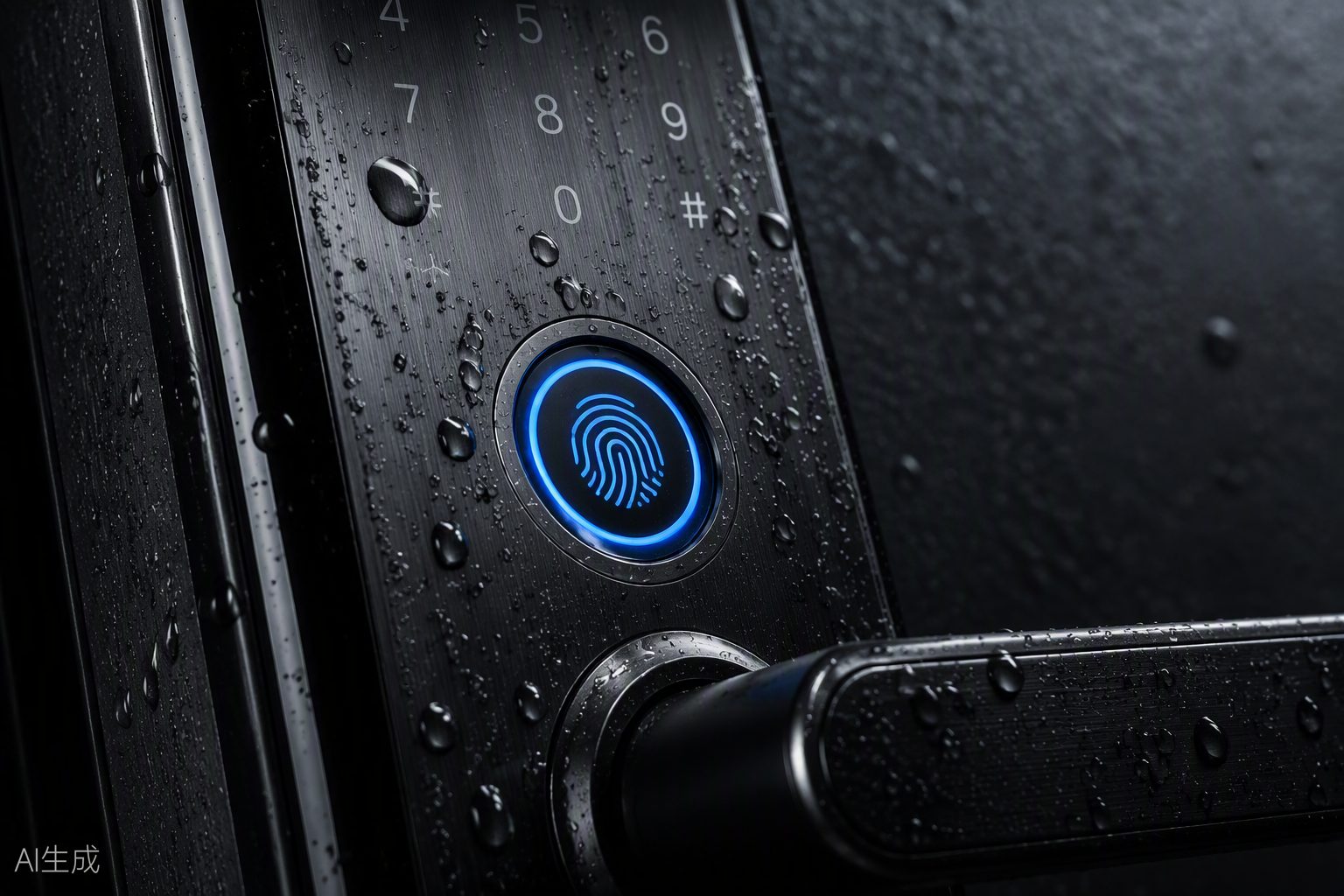
This feature is built for LDRENTING users managing apartments, homestays, hotels, and online rental properties. It is ideal for new project launches, building takeovers, or seasonal portfolio expansions. Whenever you need to onboard more than 10 units at once, simply populate the template with your existing lease or inventory data and sync it to the cloud. It is especially valuable for centralized apartment chains and distributed homestay management teams migrating from offline spreadsheets.
Step-by-Step
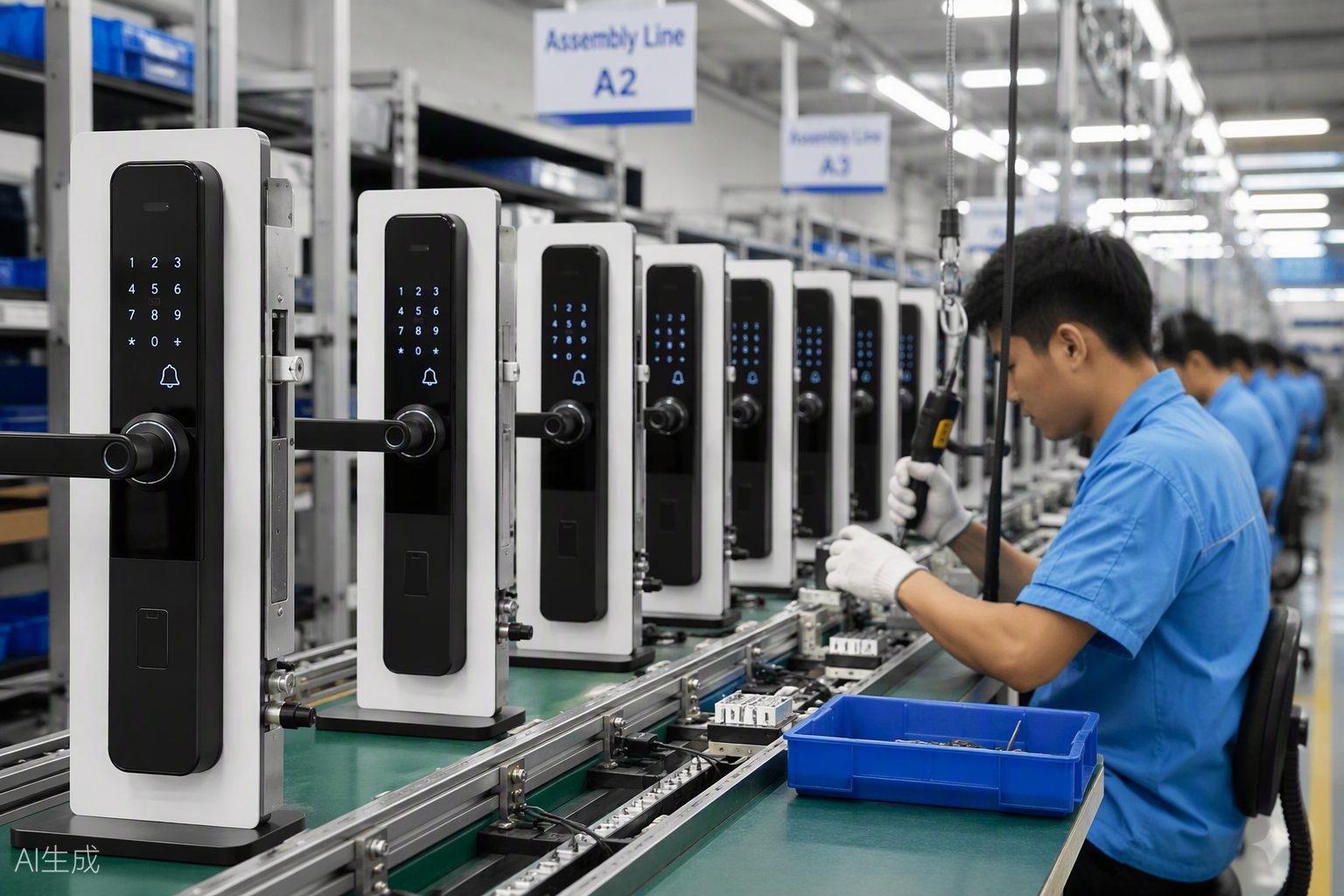
Step 1: Log in to LDRENTING and Access the Property Center
- Open your browser and log in to the LDRENTING management console with your admin account.
- In the left navigation panel, select "Property Management" and enter the "Property List" page.
- Click the "Bulk Import" button in the upper-right corner to open the import wizard.
> [Screenshot placeholder] LDRENTING dashboard with left sidebar expanded, highlighting "Property Management" and the "Bulk Import" button
Step 2: Download the Official Excel Template
- In the first step of the wizard, click "Download Template" to save the standard .xlsx file.
- Always use the latest official template to avoid compatibility issues.
- Open the file locally to see preset headers: Property ID, Property Name, Store, Building, Unit, Floor, Room Number, Room Type, Area, Rent, Deposit, Device SN, Lock Model, etc.
> [Screenshot placeholder] Import wizard modal showing the "Download Template" button and file-type reminder
Step 3: Fill in Property Data According to the Rules
- Enter each unit on a separate row. Red headers are mandatory and cannot be left blank.
- Use a globally unique Property ID (e.g., A-01-0101). For Lock Model, select from the dropdown list of supported FANDAN models such as F25, P30, F9PRO+, and G20PRO.
- If no lock is installed yet, leave the Device SN column empty and bind hardware later via Device Management.
- Save the file and close Excel before uploading to prevent file-locking errors.
> [Screenshot placeholder] Close-up of the Excel template showing red mandatory headers, lock-model dropdown, and sample data rows
Step 4: Upload the File and Run Auto-Validation
- Return to the wizard, click "Upload File," or drag and drop the .xlsx file into the dashed border area.
- The system runs instant format validation: it checks for missing mandatory fields, duplicate IDs, illegal characters, and model mismatches.
- If validation passes, a green message reads "Validation passed, XX records ready to import." If errors exist, the system highlights the exact rows and reasons, and allows you to download an error report with one click.
> [Screenshot placeholder] Post-upload validation screen showing success count on the left and example error rows highlighted in red on the right
Step 5: Confirm Import and Review Results
- After successful validation, choose a duplicate-handling strategy: "Overwrite Existing" or "Skip Duplicates" based on your business needs.
- Click "Confirm Import." The system writes data to the database; typically 100 units finish within 30 seconds.
- A result popup displays success count, failure count, and skipped duplicates. Click "View Properties" to jump to the property list and verify room types, IDs, and device bindings.
> [Screenshot placeholder] Import completion modal with success/failure statistics and a blue primary "View Properties" button
Pro Tips
- Pre-configure store architecture: Before importing, create stores, buildings, and units under "Store Management." This lets you select them from dropdowns in the template and prevents orphaned listings.
- Batch-bind smart locks upfront: In the "Lock Model" column, choose real FANDAN models such as F25, F9AUTO, or P40, and enter the matching SN in the "Device SN" column. The import automatically pairs the room and lock, saving hours of manual matching later. FANDAN locks support TTLOCK, Tuya, BLUELOCK, and LDLOCK protocols; they sync automatically to the corresponding platform after pairing.
- Excel drag-to-fill: If units on the same floor share the same layout, fill one row and use Excel formulas or drag-to-fill for room numbers (e.g., 0101, 0102) and bulk-paste room types and areas to boost speed tenfold.
- Background import queue: For bulk jobs exceeding 500 units, the system processes asynchronously. You can close the page safely and check progress later under "Import History."
FAQ
- "File format error" after upload: Make sure you use the .xlsx template downloaded from the system, not .xls or .csv. If edited in WPS or compatibility mode, re-save as "Excel Workbook (.xlsx)" and retry.
- "Duplicate Property ID" during validation: IDs must be unique across your LDRENTING account. Check for duplicates inside the template or conflicts with existing properties. Choose "Overwrite Existing" in the import strategy, or update the ID and re-upload.
- Import succeeded but devices are not bound: Verify that the SN matches the selected lock model (e.g., F21, F11) and that the device is already registered in "Device Management" and in an unbound status. If the SN column was left blank, the room was created without hardware; go to the room details page and click "Add Device" to complete binding manually.
Related Features
After bulk initialization, pair your properties with smart water and electricity meters for automatic utility reading, or use FANDAN PMS for integrated short-term rental operations. Public housing operators may deploy [FANDAN HOME](https://store.fandanlock.com) with private-server customization. Full hardware lines including K3 Access Control, Power Switches, and E5 Card Issuers are available at [FANDAN official site](https://store.fandanlock.com).
Get started with LDRENTING Bulk Import today and onboard your portfolio in minutes. Qualified business customers can apply for [Get Free Sample](https://store.fandanlock.com) to receive complimentary F25, P30, or F9PRO+ smart locks and accelerate your project launch.