
FANDAN Smart App Beginner’s Guide: Add Your First Lock in 5 Minutes
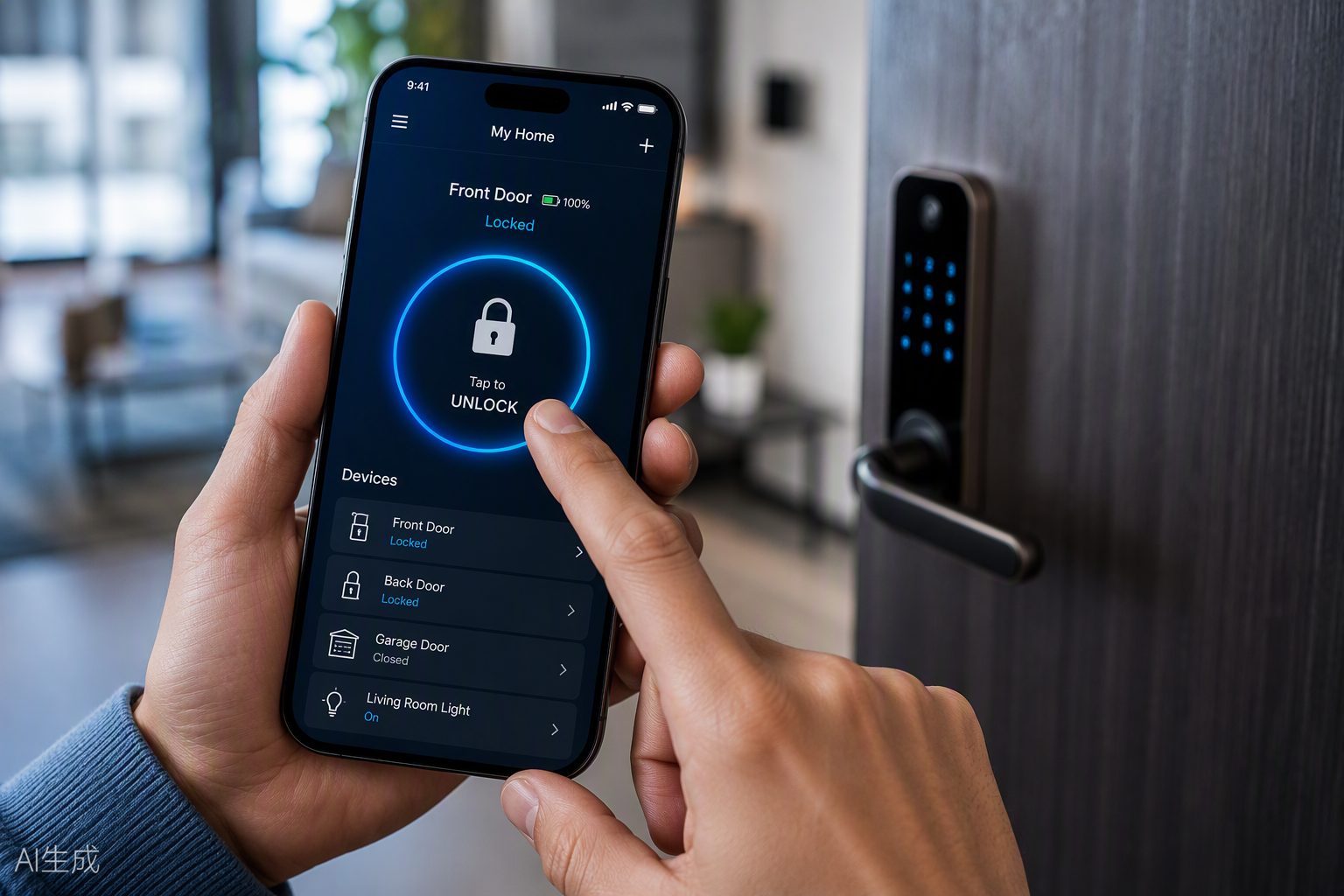
You’ve unboxed a F25 or F9PRO+, installed the batteries, but now what? For landlords, property managers, and Airbnb hosts new to smart locks, the real first step is teaching your phone to recognize the device. This guide walks you through the LDLOCK FANDAN Smart app using F25, F9PRO+, and P30 models as examples.
Why It Matters: The 5-Minute Setup That Saves 50 Hours Later
LDLOCK FANDAN Smart is the native mobile management platform developed by Zhejiang Lading Technology Co., Ltd. for its full line of smart locks. Once you complete the initial pairing, you gain the ability to review unlock logs, issue temporary passwords, and freeze access instantly when tenants change—all without rekeying a single cylinder. Spending five minutes on correct enrollment now eliminates the hidden costs of repeated key handovers and on-site lock changes later. Learn more about our ecosystem at [FANDAN official site](https://store.fandanlock.com).
Use Cases: Who Needs This Tutorial Right Now
- Apartment landlords and short-term rental hosts who just received a FANDAN F25, F9PRO+, or P30 and want to complete commissioning independently.
- Property management teams transitioning from mechanical locks to phone-centric access control for multifamily buildings.
- Cross-border e-commerce sellers and global distribution partners preparing FANDAN inventory for overseas clients and needing to master the LDLOCK workflow in advance.
Step-by-Step: From Unboxing to Unlock in Seven Moves
Step 1: Download LDLOCK FANDAN Smart and Register
- Search for "LDLOCK 凡单智能" in the iOS App Store or Google Play. Download the official app published by Zhejiang Lading Technology Co., Ltd. Register with your mobile number—use one you check often, because this is where low-battery and tamper alerts will be sent.
> [Screenshot placeholder] App login and registration screen showing mobile number field and verification code button
Step 2: Grant Bluetooth and Location Permissions
- The app communicates with the lock over Bluetooth. On first launch, allow Bluetooth and location access (Android requires location services for BLE scanning; iOS needs "While Using the App"). Without these permissions, the app cannot discover nearby locks.
> [Screenshot placeholder] System permission dialog requesting Bluetooth and Location access
Step 3: Put the Lock into Pairing Mode
- Using the F25 or F9PRO+ as an example, open the indoor cover or battery compartment. Press and hold the "Settings" or "Initialize" button for 3–5 seconds until you hear a beep or see the indicator flash rapidly. The lock is now broadcasting via Bluetooth for 90 seconds.
> [Screenshot placeholder] Battery compartment close-up with a finger pressing the Settings button, annotated with a red arrow
Step 4: Tap Add Device on the App Home Screen
- Return to the LDLOCK app and tap the "+" icon in the top-right corner, or the central "Add Device" button. The app will automatically scan for FANDAN locks within approximately 10 meters.
> [Screenshot placeholder] App device list homepage highlighting the top-right "+" add button
Step 5: Select the Model and Complete Pairing
- In the scan results, look for an entry like "F25_XXXX" or "P30_XXXX" that matches the model sticker on your lock body. Verify the last four digits of the MAC address if multiple devices appear. Tap the correct entry and wait 3–5 seconds for the "Connected" confirmation.
> [Screenshot placeholder] Bluetooth device search list showing discovered lock names and signal strength
Step 6: Name the Room and Set the Admin PIN
- After a successful connection, you will be prompted to name the lock (e.g., "Unit 201 Main Door") and set a 6- to 8-digit admin PIN. This PIN serves as a local backup credential and is required when adding fingerprints or cards later, so store it securely.
> [Screenshot placeholder] Device info editing page with room name input field and admin PIN setup
Step 7: Verify Unlock and Finish Enrollment
- Tap "Finish" to land on the device control dashboard. Press the unlock icon and listen for the motor to engage—this confirms the pairing worked. Test the keypad as well: wake the panel and enter the admin PIN from Step 6 to ensure local access is functional.
> [Screenshot placeholder] Single-lock control dashboard with a prominent circular unlock button and password management shortcut below
Pro Tips: Three Efficiency Shortcuts Power Users Rely On
- Home-Screen Quick Unlock: Inside the LDLOCK app, use the "More" menu or long-press the device card to add a shortcut to your phone’s home screen. The next time a tenant forgets a key, one tap unlocks the door without opening the app (requires Bluetooth proximity or a gateway).
- Seamless Handoff to LDRENTING: If you also use the LDRENTING FANDAN Manager platform, locks added in LDLOCK sync automatically to your property management dashboard. There is no need to re-enter device data. You can issue tenant-specific passwords and set auto-expiry by lease term directly in LDRENTING.
- Keep Alerts On: Navigate to "Profile > Notification Center" and enable tamper and low-battery alerts. Models like the F9PRO+ and P60 will push real-time warnings to your phone, often letting you fix issues before a tenant even notices them.
FAQ: Three Common Reasons Pairing Fails
- Device Not Found: This usually means location permission is disabled (Android mandates location for BLE discovery) or the lock was not put into pairing mode correctly. Re-check app permissions and long-press the initialize button until you hear the audible prompt.
- "Device Already Bound" Error: The lock was previously enrolled under another account. Perform a factory reset by pressing and holding the initialize button for about 8 seconds while powered on to clear old bindings, then retry Steps 3–7.
- Pairing Succeeds but Unlock Fails: First check battery level—insufficient voltage can sustain a Bluetooth link but fail to drive the motor. Next, confirm the admin PIN has been synchronized. If the issue persists, delete the device from the app and re-enroll.
Related Features: What to Set Up Next
Adding your first lock is only the beginning. If you manage apartments or vacation rentals, explore LDRENTING FANDAN Manager for centralized control over multiple F25, F9PRO+, and P30 units. For overseas short-term markets, the BLUELOCK mini program lets international guests receive temporary keys without installing an app. Visit [FANDAN official site](https://store.fandanlock.com) to apply for Get Free Sample—ships direct from our Yongkang factory so you can validate the full ecosystem risk-free.